This article will take you through:
- Glofox Payments with Stripe
- How to Set up Glofox Payments
- Already using Stripe and Moving to Glofox?
- Payment Security
- Next steps and additional support
Glofox Payments with Stripe
Glofox integrates best with Stripe, a trusted, secure, and headache-free payment processing software. Setting up with Stripe will allow you to make payments via your member app and website integration.
Stripe Countries and Products Available
| Australia | Card, DD, Terminal |
| Austria | Card, DD, Terminal |
| Belgium | Card, DD, Terminal |
| Bulgaria | Card, DD |
| Canada | Card, DD, Terminal |
| Croatia | Card, DD |
| Cyprus | Card, DD |
| Czech Republic | Card, Terminal |
| Denmark | Card, DD, Terminal |
| Estonia | Card, DD |
| Finland | Card, DD, Terminal |
| France | Card, DD, Terminal |
| Germany | Card, DD |
| Gibraltar | Card |
| Greece | Card, DD |
| Hong Kong | Card |
| Hungary | Card |
| Ireland | Card, DD, Terminal |
| Italy | Card, DD, Terminal |
| Japan | Card, Terminal |
| Latvia | Card, DD |
| Lithuania | Card, DD |
| Liechtenstein | Card |
| Luxembourg | Card, DD, Terminal |
| Malta | Card, DD |
| Mexico | Card |
| Netherlands | Card, DD, Terminal |
| New Zealand | Card, DD, Terminal |
| Norway | Card, Terminal |
| Poland | Card,Terminal |
| Portugal | Card, DD, Terminal |
| Romania | Card, DD |
| Singapore | Card, Terminal |
| Slovakia | Card, DD |
| Slovenia | Card, DD |
| Spain | Card, DD, Terminal |
| Sweden | Card, DD, Terminal |
| Switzerland | Card, Terminal |
| United Arab Emirates | Card |
| United Kingdom | Card, DD, Terminal |
| United States | Card, DD, Terminal |
| Thailand | Card |
| Brazil | Card |
| Malaysia | Card, Terminal |
How to Set up Glofox Payments
Follow the appropriate steps below to get your payments set up.
Please note:
- The routing number can also be known as a sort code/swift code.
- You must use your registered business name and not the trading name
- It is essential to upload an ID, which matches the account holder's name exactly, as if not done, so this can affect receiving payouts from Stripe to your bank account.
-
The ID must be uploaded in either PNG or JPEG format and be under 5mb in size.
To set up Card payments, follow these steps:
- On your Dashboard, click the settings icon in the bottom left of the screen
- Click on the 'Payments' tab.
- Next on 'Card', click 'Configure'.
- You will then be prompted to submit your details such as name, account number, routing number, etc. as per the video below. Once finished click 'Save'.
We recommend that you do one final check by going to the Glofox Payments settings page in the Glofox Dashboard and check that there are no outstanding steps for you to complete. Instructions on how to do that are set out here.
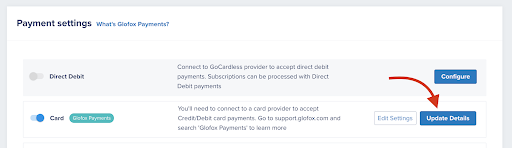
- Go to Manage -> Settings -> Payments
- Click on update details as shown below
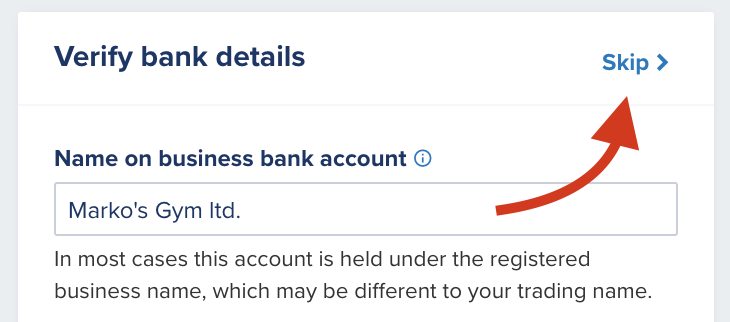
3. If you need to update your bank details, you can do so here; otherwise, click on 'Skip,’ as shown below:
4. You will then see a list of any outstanding information or documents that need updating highlighted in red, like below:
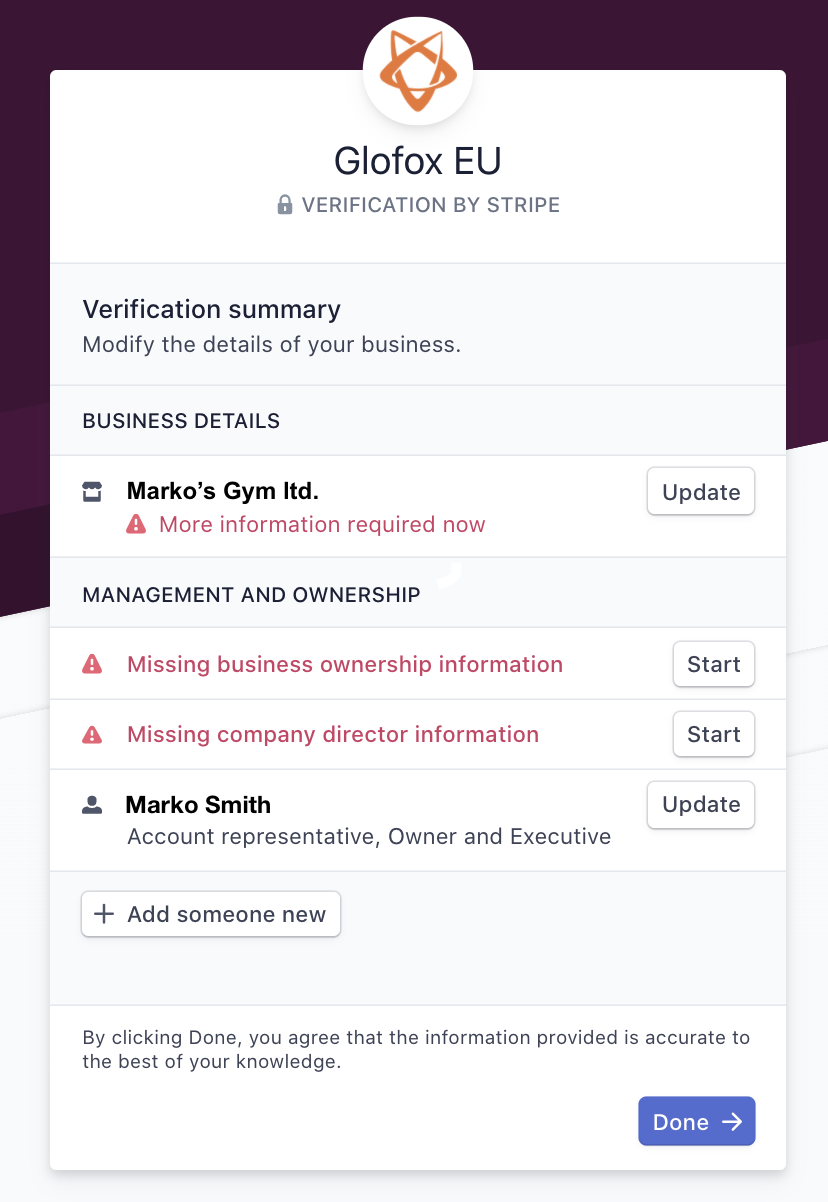
Examples of what you might need to update include:
- Business address.
- Account owner’s title within the business.
- Company verification documents.
- Other related business information.
Please note:
- The routing number can also be known as a sort code/swift code.
- You must use your registered business name and not the trading name
- It is essential to upload an ID, which matches the account holder's name exactly, as if not done, so this can affect receiving payouts from Stripe to your bank account.
- The ID must be uploaded in either PNG or JPEG format and be under 5mb in size.
To set up Direct Debit (ACH), follow these steps:
- Confirm that the customer does not already have a card payment method set up.
- If they do not have a card set up, go to Desk and make sure the Stripe Direct Debit toggle is turned on.
- Next, go to the Dashboard and click Configure.
- Enter all information requested by Stripe.
- Once completed, the customer will be set up in Stripe for both Card and Direct Debit payments.
Please note:
- If the customer already has a card set up and the Stripe Direct Debit flag is enabled afterward, Stripe should connect Direct Debit to the existing card account automatically.
- In some cases, this connection does not happen correctly.
- If that occurs, the payment method must be created manually and then linked to the existing card account.
Already using Stripe and moving to Glofox
If you already have a Stripe account from a previous business, we still encourage you to move over to Glofox Payments to avail of all the latest features that Glofox has to offer. Glofox Payments clients have all the latest features including:
- Ability to do a partial refund
- Forgive, or retry failed payments
- Improved transaction & previous membership history
For more information, please get in touch with your Onboarding Manager or Customer Service Representative.
Payment Security
Your payment details are stored on Stripe, a trusted, secure payment processing company that is also used by Apple Pay. Glofox is Level 1 PCI compliant when processing payment data.
The rest of your data is stored in our servers which have several levels of security. Our technical architecture and procedures ensure all data is protected to the highest standard.
Next steps and additional support
To find out more about Stripe and failed payments, read the below article;
For additional support reach out to support@glofox.com and we will be happy to assist you.